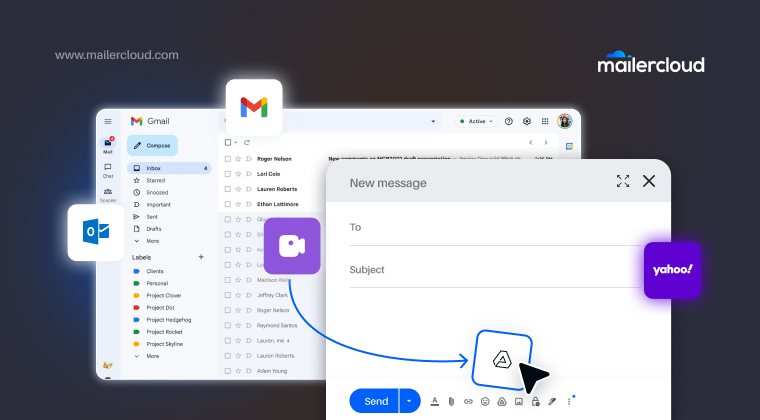

Sending large video files through email can often be challenging due to file size limitations imposed by most email providers. However, with the right tools and techniques, you can easily send videos without compromising on quality or exceeding file size limits. In this guide, we’ll cover the best ways to send large videos via email, including tips on using Google Drive and other services. Whether you’re a marketer, a business professional, or simply sharing personal content, this article will provide you with the information you need to send large videos efficiently.
Table of Contents
Why is It Difficult to Send a Large Video Through Email?
Many popular email platforms, including Gmail and Outlook, impose strict file size limits on attachments. In 2026, Gmail still caps attachments at 25 MB and Outlook.com at 20 MB, which is a problem if you want to send a large video file. Most videos, especially those shot in high definition, exceed this limit, making it impossible to send them directly via email. If you’re using Outlook and want to enhance your email design without exceeding size limits, consider using optimized HTML templates. Here’s how to convert HTML to OFT format for Outlook to create reusable, lightweight email templates.
The main reason email providers limit the size of attachments is to prevent their servers from being overwhelmed by large files, which can also slow down the user experience. Therefore, users must find alternative ways to send a large video file without exceeding the email provider’s limitations.
Related guide: B2B Email Marketing.
How to Send a Large Video Through Email
If you’re trying to send a large video file through email, the best way to do this is by using cloud storage services like Google Drive or Dropbox. Follow these steps:
- Upload the video to a cloud service such as Google Drive.
- Once the video is uploaded, create a shareable link.
- Compose a new email, paste the link to the video into the body of the email, and send the email.
By using cloud storage services, you avoid the file size limit and can send large video files to your recipients seamlessly.
What Are the Limitations of Email Attachments?
Email providers like Gmail, Yahoo, and Outlook have specific limitations when it comes to email attachments. As mentioned earlier, Gmail has a 25 MB limit, while Yahoo Mail also allows 25 MB, and Outlook.com is lower at 20 MB, counting the email text and attachments together. Work accounts on Microsoft 365 can be even lower: the default Exchange limit is 10 MB unless your admin raises it. Apple users can also manage iCloud storage effectively by learning how to delete messages from icloud to free up space for large attachments.
Gmail, in particular, continues to evolve its platform for better email management and security — from attachment handling to sender verification. Learn how Gmail’s blue verified checkmark builds trust and enhances brand credibility.
These restrictions are in place because large files can strain email servers and clog inboxes. Additionally, the recipients might face difficulties downloading large video files due to slow internet speeds or limited storage space. The best way to send large video files without hitting these restrictions is to use cloud storage services.
| Email service | Attachment limit | What to do with a bigger video |
|---|---|---|
| Gmail | 25 MB | Gmail turns it into a Google Drive link automatically |
| Outlook.com | 20 MB (email + attachments) | Upload to OneDrive and send the link |
| Microsoft 365 / Exchange (work) | 10 MB by default; your admin can raise it | Share from OneDrive or SharePoint |
| Apple iCloud Mail | 20 MB | Use Mail Drop (up to 5 GB, link lasts 30 days) |
| Yahoo Mail | 25 MB | Share a cloud storage link |
| AOL Mail | 25 MB | Share a cloud storage link |
| Proton Mail | 25 MB | Share an encrypted Proton Drive link |
| Zoho Mail | 30–40 MB on paid plans | Use Zoho’s large-attachment option or a WorkDrive link |
| GMX Mail | 50 MB | Share a cloud storage link |
How to Send a Large Video From Gmail and Outlook (2026 Steps)
Both Gmail and Outlook can send a video of any size. Past the attachment limit, the video travels as a cloud link instead of a file. Here are the current steps for each.
Gmail: videos over 25 MB
- Open Gmail on a computer and click Compose.
- Click the Google Drive icon at the bottom of the message. (If you attach the video with the paperclip instead, Gmail uploads anything over 25 MB to Drive and inserts a link for you.)
- Choose the video from Drive, or upload it from your computer.
- Select Drive link, then click Insert.
- Click Send. If your recipient can’t open the file yet, Gmail asks how to share it. Choose “Anyone with the link” for people without a Google account.
Drive accepts files up to 5 TB, but the video uses your Google storage: 15 GB on a free account, shared with Gmail and Photos.
Outlook: videos over 20 MB
- Upload the video to OneDrive (onedrive.live.com, or the OneDrive folder on your computer).
- Select the file, click Share, and then Copy link.
- In Outlook, click New mail, paste the link into the message, and send it.
If the video is already in OneDrive, you can also attach it from OneDrive in Outlook and share it as a link instead of a copy. OneDrive takes files up to 250 GB; a free Microsoft account includes 5 GB of cloud storage. On a work account, your company may set different attachment limits and sharing rules.
iPhone, iPad and Mac Mail: use Mail Drop
In Apple Mail, attach the video as normal. If it’s too big for your email provider, Mail offers to send it with Mail Drop, which uploads the video to iCloud and sends a download link. Mail Drop handles files up to 5 GB, the link lasts 30 days, and it doesn’t use your iCloud storage.
How to Send a Large Video File via Google Drive
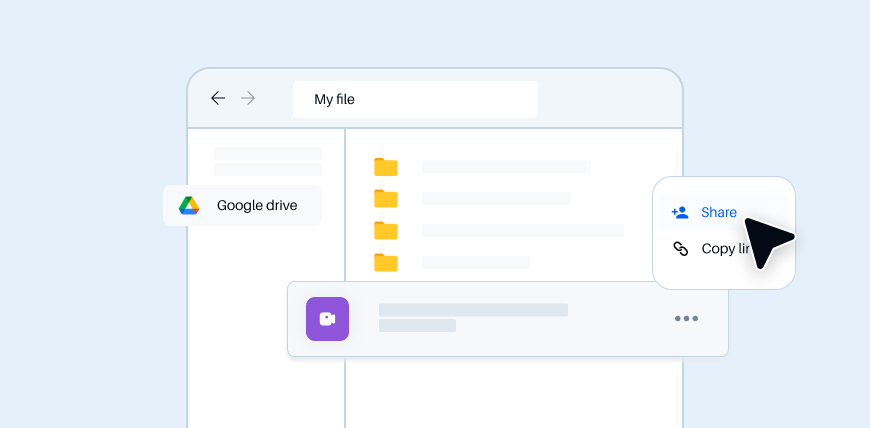
Google Drive is one of the best solutions for sending large video files via email. Here’s how to send a large video through email using Google Drive:
- Upload the video to Google Drive: Log in to your Google Drive account and upload the video file you want to send. Drive accepts files up to 5 TB, but the video counts toward your storage, and a free Google account has 15 GB shared across Gmail, Drive and Photos.
- Share your video: After uploading, right-click the file and choose Share, then Copy link. Under General access, pick “Anyone with the link” if your recipient doesn’t use a Google account, or add their email address to share it privately.
- Send the link via email: Compose a new email and paste the shareable link in the body of the email. The recipient can click the link to view and download the video.
This method ensures that your video file can be sent without exceeding the email provider’s attachment limit.
The Best Format for Sending Large Videos via Email
When sending a video via email, it’s important to consider the format of the video file. The best video formats for email are:
- AVI: Though it produces high-quality videos, AVI files tend to be larger, making them less suitable for email.
- MOV: This format is commonly used for videos on Apple devices, but it may not be compatible with all email platforms.
To ensure smooth playback across all devices, it’s recommended to use MP4 format for sending large video files via email.
How to Send a Video via Email Using Other Cloud Storage Services
Aside from Google Drive, there are several other cloud storage services you can use to send a large video through email:
- Dropbox: Upload your video file to Dropbox and share a link with the recipient.
- OneDrive: Upload the video, then use Share and Copy link. OneDrive takes files up to 250 GB, but a free Microsoft account only includes 5 GB of cloud storage.
- WeTransfer: The free plan sends files up to 3 GB per transfer without an account, with up to 10 transfers in any 30 days. Download links expire after 3 days, so tell your recipient to download the video soon.
These services allow you to bypass file size limits and share large videos with ease.
How to Compress Large Video Files for Email

Video compression is an effective way to reduce the size of your video file, making it easier to send via email. Several video editing tools are available to help compress, trim, and prepare videos for email, including:
- HandBrake: A free tool that allows you to compress videos without losing quality.
- VLC Media Player: Use Media > Convert/Save to re-encode a video as a smaller MP4. It gives you less control over quality than HandBrake, but it’s handy if VLC is already installed.
By compressing your video, you can reduce its file size and increase the chances of it fitting within the email provider’s file size limits. A video summarizer can condense lengthy videos into short, easy-to-read summaries, helping recipients quickly understand the key points without downloading the entire file.
Send Large Videos as a YouTube or Vimeo Link
If you prefer not to use cloud storage services, you can send a large video through email by embedding the video directly within the email or providing a link to the video hosted on platforms like YouTube. To do this:
- Upload the video to YouTube (or a similar platform).
- Copy the video link and paste it into your email.
- The recipient can view the video by clicking the link in your email.
This is an efficient way to send large videos without relying on cloud storage services.
How to Send a Video by Email for Marketing Purposes
Videos are highly engaging in email marketing. Brands often create short promotional clips, product demos, or explainer videos to increase engagement. With modern AI-powered video tools such as video to video AI, marketers can transform existing footage into different formats or styles that perform better across email campaigns. If you want to send videos via email for marketing purposes, here are a few tips:
- Don’t be over-promotional: Focus on delivering valuable content to your audience rather than pushing sales.
- Link to the video from a thumbnail: Most email clients, including Gmail and Outlook, won’t play a video inside the email. Use a still image with a play button that links to the video on your site or YouTube instead.
- Offer exclusive content: Entice subscribers with exclusive videos and content that can’t be found elsewhere.
Frequently Asked Questions About Sending Large Video Files via Email
What is the maximum video size I can send by email?
Most email providers cap attachments at 20–25 MB, Mailercloud’s guide notes: Gmail allows 25 MB and Outlook.com allows 20 MB. To send a bigger video, share it as a link from Google Drive, OneDrive, Dropbox or iCloud Mail Drop, which handle files from 5 GB to several terabytes.
How do I send a video larger than 25 MB in Gmail?
Gmail sends it as a Google Drive link, as Mailercloud’s guide explains. Attach the video as normal and Gmail uploads anything over 25 MB to Drive automatically, or click the Drive icon in the compose window, choose the video, select Drive link and click Insert.
What is the Outlook attachment size limit in 2026?
Outlook.com allows 20 MB per email, including the message text, according to Microsoft and summarized in Mailercloud’s guide. Microsoft 365 work accounts default to 10 MB unless an admin raises it. For larger videos, upload them to OneDrive and paste the share link into your email.
How do I email a large video from my iPhone?
Use Mail Drop, Mailercloud’s guide recommends. Attach the video in the Mail app, and if it’s too large, Mail offers to send it through Mail Drop, which uploads it to iCloud and emails a link. Mail Drop handles files up to 5 GB and links last 30 days.
Can I send a video by email without uploading it to the cloud?
Only if it’s under your provider’s limit, usually 20–25 MB. Mailercloud’s guide suggests compressing it with a free tool like HandBrake first. Otherwise, a link from a cloud service, WeTransfer, YouTube or Vimeo is the reliable option.
Can I compress a video to fit the email size limit?
Yes. Mailercloud’s guide recommends HandBrake, a free tool that can shrink a video to an MP4 with a smaller resolution or bitrate. A short clip can often get under 25 MB, but longer or HD videos usually still need a cloud link.
Can I embed a video in a marketing email?
Not reliably. Mailercloud recommends using a thumbnail image with a play button that links to the video, because Gmail, Outlook and most other email clients won’t play video inside the email. The thumbnail approach works everywhere and still lets you track clicks.
Key Takeaways:
- Sending large video files via email is difficult due to file size limits.
- Use cloud storage services like Google Drive to share large videos.
- Compress videos to reduce file size and make them easier to send.
- For marketing, link a video thumbnail to the video instead of embedding it, since most email clients won’t play video inside the email.

As a Marketing Director, I develop and implement marketing strategies, conduct market research, and manage a team of marketing professionals. With a successful track record of launching campaigns that drive revenue growth, I bring my marketing expertise to blog writing, creating engaging content that promotes the brand and its products/services.